
All windows at once
The core difference from one-window-at-a-time tools: a single click arranges everything visible on screen into your chosen layout.

Arrange every window with one click.
Requires macOS 13.0 or later · Free — donations welcome from the About window.
Stage Manager parks your apps in a tidy strip down the side — and on a big display it leaves a wide-open canvas for you to fill in by hand. So you drag and resize, window by window, every time you switch tasks. One-window-at-a-time tools like Rectangle barely help: you still do all the choreography yourself.
Staged fills that space for you. One click from the menu bar and every visible window snaps into a clean layout, reserving room for the Stage Manager strip and the Dock. And it reads how many windows you have open, offering only the layouts that actually fit — no scrolling past arrangements that don't apply.
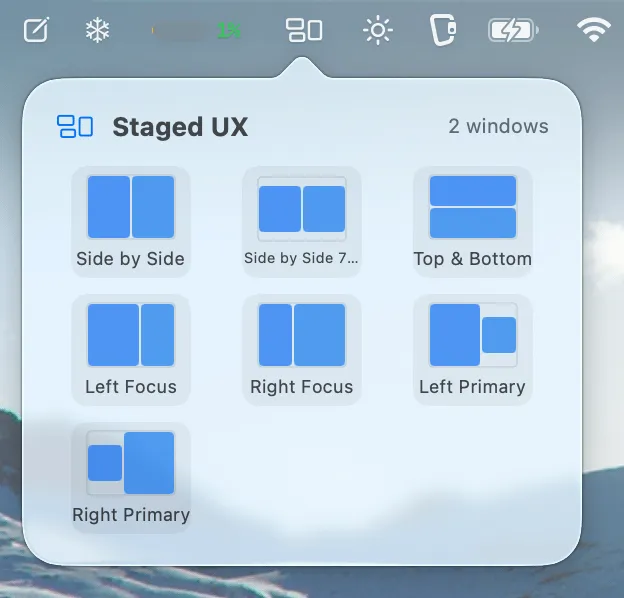
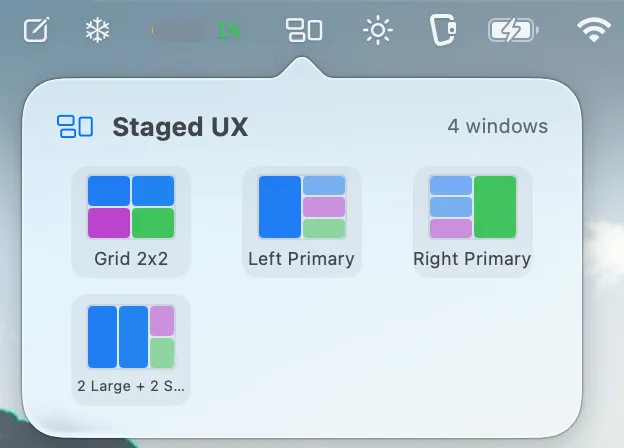
Staged counts the windows you have open and shows only the layouts that fit that many. You own all 27 — you just never see the ones that don't apply right now. Same menu, two different moments:
Two windows open
Four windows open
The core difference from one-window-at-a-time tools: a single click arranges everything visible on screen into your chosen layout.
Side-by-side, focus splits, primary-plus-stack, columns and grids for two through six windows — 27 in all. Staged shows only the ones that fit the windows you have open right now.
Click the same layout again to rotate which window sits where, keeping your spatial memory intact instead of reshuffling everything.
Staged learns which apps prefer smaller windows — Terminal, Calculator — and automatically tucks them into the smaller slots. Manual overrides stick.
Set a left margin for the Stage Manager strip and a bottom margin for the Dock with a visual, draggable editor — plus the gap between windows — and Staged tiles everything into the space that's left. The piece a big display with Stage Manager was missing.
Always reachable from the menu bar, even when windows cover the screen. Works with or without Stage Manager. Native Swift, tiny footprint.
Staged requires macOS 13 (Ventura) or later.
macOS only allows apps to move and resize other apps’ windows through the Accessibility API. Staged asks for this permission during setup and uses it solely to arrange your windows.
No. Staged works with or without Stage Manager. If you use it, set a left margin so your windows leave room for the Stage Manager strip.
Rectangle arranges one window at a time. Staged applies a layout to all visible windows at once, and can cycle their positions with repeated clicks.
Click a layout once to apply it; click again to rotate which window occupies which slot, so you can change focus without dragging anything.
After a few uses, Staged classifies each app as “small” or “large” based on the window sizes you use, and prefers small apps for the smaller slots. You can override any classification.
Open the downloaded disk image and drag Staged to Applications. On first launch, right-click the app and choose Open to approve it in Gatekeeper.
Languages
Staged UX is fully localized — it speaks your language from first launch, no setup:
Support
One person builds these apps and reads every email. Hit a bug, want a feature, or want Staged UX in a language that's not here yet? Tell me.
Or just email support@anthem-technology.com.